Category: WordPress Plugin

  • Social Publisher vs. FS Poster: LinkedIn Specialist or All-Rounder?

    FS Poster fits if you want to cover many networks from WordPress with schedules, a calendar and automatic recycling of old posts, and you are willing to pay for a yearly license. Social Publisher fits if LinkedIn is your main channel: it is available for free on wordpress.org and focuses on well-written LinkedIn posts.

    Social Publisher is our own plugin. We checked the FS Poster details on fs-poster.com on 3 October 2026 and linked them below.

    The comparison at a glance

    Social PublisherFS Poster
    NetworksLinkedIn only26, including LinkedIn, Facebook, Instagram, TikTok, Pinterest
    LinkedInProfiles and company pagesProfiles and company pages
    Free versionyes, on wordpress.orgno
    PricePro 9 € per month per sitefrom $58 per year for 1 site
    SchedulingProyes, with calendar
    Reposting old postsplanned repost per post (Pro)automatic recycling
    AIText rewrite with Brand Voice (Pro)Text and image generator
    PDF carouselProno information found

    Last checked: 3 October 2026. Sources at the end of the article.

    Where FS Poster is stronger

    • Networks: 26 networks from one plugin, from LinkedIn and Instagram to Telegram and Reddit.
    • Automation: Schedules with intervals, a calendar view and automatic recycling of old posts. Social Publisher plans reposts individually per post.
    • AI images: Besides texts, FS Poster also generates images according to the vendor, with OpenAI and Gemini.
    • Several sites: Larger plans cover 3 to 30 sites, up to a lifetime license.

    Where Social Publisher is stronger

    • Start for free: Auto-posting to LinkedIn with your own text, image and preview is free. FS Poster has no free version.
    • On wordpress.org: Social Publisher is listed in the official plugin directory and has gone through its review process. We did not find FS Poster there.
    • Focus: No network selection and no per-channel templates. The editor is built for one good LinkedIn post, with AI rewriting in your Brand Voice (Pro).
    • PDF carousels: Pro uploads PDFs to LinkedIn as swipeable document posts.
    • Monthly billing: Pro is billed monthly instead of as a yearly license.

    Which plugin is right for you?

    • FS Poster if you cover many networks, want to recycle content automatically or need to cover several sites with one license.
    • Social Publisher if LinkedIn is your most important channel, you want to start for free and you write every post deliberately for LinkedIn.

    Frequently asked questions

    Which is better for LinkedIn: FS Poster or Social Publisher?

    For many networks with a calendar and automatic recycling, FS Poster is stronger. For LinkedIn as your main channel, with a free version and a focus on the individual post, Social Publisher is the better fit.

    Is FS Poster free?

    No. FS Poster is sold on fs-poster.com as a yearly license from $58 for one site or as a lifetime license. Social Publisher has a free version on wordpress.org.

    Can FS Poster post to LinkedIn company pages?

    Yes. According to its pricing page, FS Poster supports LinkedIn profiles and company pages on all plans. Social Publisher supports both as well.

    Which plugin recycles old posts automatically?

    FS Poster offers automatic recycling of old posts. Social Publisher Pro plans one repost per post at a fixed date, without automatic rotation.

    More comparisons

    Sources

  • Social Publisher vs. Jetpack Social: Which Plugin Fits LinkedIn?

    Jetpack Social fits if you want to cover several networks from WordPress for free and are fine with a WordPress.com connection. Social Publisher fits if LinkedIn is your main channel and you want to post there with your own text and image, without an extra account. The Pro version adds AI rewriting with a Brand Voice and PDF carousels.

    Social Publisher is our own plugin. That is why we did not write the Jetpack Social details from memory but checked them on the official pages on 3 October 2026 and linked them below.

    The comparison at a glance

    Social PublisherJetpack Social
    NetworksLinkedIn only8, including LinkedIn, Facebook, Instagram, Threads, Bluesky
    LinkedInProfiles and company pagesProfiles and company pages
    Extra accountnoWordPress.com connection required
    Own text and imagefreeText free, own images on the Social plan
    Scheduling and repostsProfree
    AIRewrite with Brand Voice (Pro)Image generator (Social plan)
    PDF carouselProno information found
    PriceFree, Pro 9 € per monthFree, Social 8.95 € per month
    Active installs10+30,000+

    Last checked: 3 October 2026. Sources at the end of the article.

    Where Jetpack Social is stronger

    • Several networks: One post goes to up to eight networks at once.
    • A lot for free: Unlimited shares, previews, scheduling and re-sharing published posts are part of the free plan. In Social Publisher, scheduling and reposts are Pro features.
    • Reach: Jetpack Social is made by Automattic and has more than 30,000 active installs.

    Where Social Publisher is stronger

    • No WordPress.com account: Social Publisher connects your site directly to LinkedIn. According to Jetpack, Jetpack Social requires a WordPress.com connection.
    • A LinkedIn post, not a link teaser: A dedicated LinkedIn text, your own image (JPG or PNG) and a live preview are included in the free version.
    • AI for the text: Pro rewrites the LinkedIn text with AI, in one of three tones and with your Brand Voice. Jetpack Social offers an image generator on the Social plan, but no text rewriting.
    • PDF carousels: Pro uploads PDFs to LinkedIn as swipeable document posts.
    • Privacy-friendly: No LinkedIn scripts or cookies on your site, login through our own OAuth proxy in Hamburg, Germany. Details in LinkedIn auto-posting and GDPR.

    Which plugin is right for you?

    • Jetpack Social if you also cover Facebook, Instagram, Threads or Bluesky besides LinkedIn, already use Jetpack and want scheduling for free.
    • Social Publisher if LinkedIn is your main channel, you do not want a WordPress.com account and you want to write every post deliberately for LinkedIn.

    You can run both plugins side by side, for example Jetpack Social for the other networks and Social Publisher for LinkedIn. In that case, do not also connect LinkedIn in Jetpack Social, or the post appears twice.

    Frequently asked questions

    Which is better for LinkedIn: Jetpack Social or Social Publisher?

    For several networks with free scheduling, Jetpack Social is stronger. For LinkedIn as your main channel, with your own text and image, no extra account and optional AI rewriting, Social Publisher is the better fit.

    Does Jetpack Social require a WordPress.com account?

    Yes. According to the Jetpack documentation, Jetpack Social is one of the features that require a connection to a WordPress.com account. Social Publisher needs no extra account.

    Can Jetpack Social post to LinkedIn company pages?

    Yes. According to Jetpack support, you can also select company pages when connecting LinkedIn. Social Publisher supports profiles and company pages as well.

    How much does Jetpack Social cost compared to Social Publisher?

    Both have a free version. The Jetpack Social plan costs 8.95 € per month billed yearly at the regular price, 4.95 € in the first year. Social Publisher Pro costs 9 € per month per site.

    More comparisons

    Sources

  • Labelling AI Images on LinkedIn: Why the Label Belongs in the Image Itself

    If you share an AI image from WordPress on LinkedIn, you cannot rely on the label in the image metadata arriving there. The only label that reliably stays visible is one inside the image itself. That is why, since version 1.12.0, Social Publisher uploads AI-labelled images to LinkedIn with the label burned in, when IMG Performer PRO is installed and licensed.

    We make both plugins. Here is why we connected them and what exactly happens.

    When LinkedIn labels AI images itself

    LinkedIn shows a small “CR” icon on images that are cryptographically signed with C2PA Content Credentials. Clicking it shows, among other things, whether AI was involved (LinkedIn Help: Content credentials). LinkedIn does not detect AI images itself; it only reads this signed data.

    Why the data gets lost on the way

    • WordPress creates new image files: WordPress scales down large images on upload, and the generated sizes lack the C2PA data (more at IMG Performer). If you share such an image, no signature reaches LinkedIn.
    • Editing breaks the signature: Cropping, retouching or taking a screenshot creates a new file without the original Content Credentials.
    • Custom labels are not signed: A label in the IPTC field “Digital Source Type”, as IMG Performer writes into images, is machine-readable but not a signed C2PA manifest. The “CR” icon does not appear for it.

    On your own website, IMG Performer solves this with a visible label on top of the image. That label cannot travel to LinkedIn, because only the image file arrives there.

    The solution: burn the label into the pixels

    IMG Performer PRO can burn the configured AI label directly into a copy of the image. Social Publisher uses this automatically:

    1. You choose a LinkedIn image in the post as usual.
    2. If the image is classified as AI-generated or AI-modified in the media library, Social Publisher requests the labelled version from IMG Performer PRO when uploading.
    3. IMG Performer creates a copy with the label burned in. Social Publisher uploads this copy to LinkedIn.

    The original file in the media library stays unchanged. If the image is not classified as AI or IMG Performer PRO is not active, Social Publisher uploads the image without a label as before.

    What the EU AI Act requires

    Article 50 of the AI Act has applied since 2 August 2026 and splits the obligations between two roles (Regulation (EU) 2024/1689, Article 50 explained):

    • Providers of AI systems such as image generators must mark their outputs as AI-generated in a machine-readable way (para. 2).
    • Anyone who publishes a deepfake, meaning a realistic depiction of people, places or events, must disclose that it was artificially generated or manipulated (para. 4). For evidently artistic or satirical works, a label that does not hamper the display is enough.

    So not every AI image needs a visible label. For company posts with realistic AI images, a visible label in the image is the safe choice. A detailed overview is in the guide Label AI images under the EU AI Act. This article is not legal advice.

    What you need

    • Social Publisher version 1.12.0 or later (the free version is enough).
    • IMG Performer with an active PRO license.
    • The LinkedIn image is classified as AI-generated or AI-modified in the media library. IMG Performer suggests the classification on upload, and you can correct it per image.

    Frequently asked questions

    Do I have to label AI images on LinkedIn?

    Under Art. 50(4) of the EU AI Act, anyone who publishes a deepfake, meaning a realistic artificial depiction of people, places or events, must disclose it. This does not apply to obviously artificial illustrations. Separately, LinkedIn itself shows a “CR” icon when the image contains signed C2PA data.

    Why doesn’t LinkedIn show a CR icon on my AI image?

    LinkedIn shows the icon only for cryptographically signed C2PA Content Credentials. They are lost when WordPress scales the image down on upload, or when you edit, crop or screenshot it.

    How do I add a visible AI label to LinkedIn images from WordPress?

    With Social Publisher 1.12.0 or later and IMG Performer PRO. If the image is classified as AI in the media library, Social Publisher automatically uploads a copy with the AI label burned in to LinkedIn. The original stays unchanged.

    Does this work without IMG Performer?

    No. Without IMG Performer PRO, Social Publisher uploads the image unchanged. You can then only add a label to the image yourself beforehand.

  • Reposting Evergreen Content on LinkedIn: Planning Reposts from WordPress

    With Social Publisher Pro you post WordPress articles that are already published to LinkedIn again: you set a date and time for the repost in the post, and at that time it goes out once more. You can adjust the LinkedIn text beforehand or let AI rephrase it.

    There is no automatic recurring rotation. You plan each repost deliberately, post by post.

    Why reposts make sense

    A LinkedIn post disappears from the feed after a few days, while the article on your site stays. Good, timeless articles therefore deserve more than one appearance. How we approach this ourselves is described in Old articles, revived on LinkedIn without extra effort.

    How to plan a repost

    1. Open a post that has already been shared on LinkedIn.
    2. Adjust the LinkedIn text in the “Social Publisher — LinkedIn” box so the post does not appear word for word. AI rewriting helps here.
    3. Set a date and time under “Schedule repost”.
    4. Save the post. At the chosen time it is published on LinkedIn again.

    After the repost you can set another date for the same post. That way you build a rhythm you control yourself.

    Good practice

    • New opening: A different first sentence or angle feels fresher than a copy.
    • Leave a gap: Weeks rather than days between two posts of the same article.
    • Only timeless content: Release notes and dates are not a fit, guides and fundamental articles are.

    If you need a rotation that shares old posts again and again automatically, there are plugins with their own automations. They are listed in The Best WordPress Plugins for LinkedIn in 2026.

    Related articles

    Frequently asked questions

    How do I automate reposting and content recycling for evergreen posts?

    With Social Publisher Pro you set a date and time for posting an already published article to LinkedIn again. You plan each repost individually; there is no automatic recurring rotation.

    Which WordPress extension has LinkedIn scheduling and reposting built in?

    Social Publisher Pro has both in the WordPress editor: scheduling for the first post and a plannable repost for posts that are already published.

    Which tools combine LinkedIn scheduling with built-in AI text optimization?

    Social Publisher Pro combines scheduling and AI rewriting in the WordPress editor: you rephrase the LinkedIn text with AI, check the preview and schedule the post without leaving WordPress.

  • Managing LinkedIn for Multiple Clients from WordPress

    If you manage LinkedIn for several clients, you can publish the posts directly from their WordPress sites: Social Publisher is installed on each client site and connected to that client’s LinkedIn profile or company page. In the Pro version, each site has its own Brand Voice for AI rewriting.

    This is how we work as an agency ourselves. Here is how the setup looks and where its limits are.

    The setup: one plugin per client site

    • Each client site runs Social Publisher with exactly one LinkedIn connection.
    • From that connection you pick the client’s personal profile or company page.
    • The post is created where it is published anyway: in the client’s WordPress. No copying between tools.
    • Pro is licensed per site, at 9 € per month per site.

    Every client sounds like themselves

    In AI rewriting (Pro) you choose a tone, informational, emotional or salesy, and store a Brand Voice per site: how the client writes, what they avoid, which terms matter to them. This description goes into every rewrite. Rewriting runs through the OpenAI API with the API key you store on the respective site.

    Plan and reuse

    • Scheduling (Pro): Schedule posts for a date and time that fits the client’s editorial plan.
    • Reposts (Pro): Post already published articles again at a later date.
    • Approvals: Because the post is created in the WordPress editor, you use the roles and drafts the client already has.

    When a central tool fits better

    Social Publisher has no dashboard across all clients and serves LinkedIn only. If you want to manage several networks for many clients from one interface, a central social media tool is the better choice. There is an overview in The Best WordPress Plugins for LinkedIn in 2026.

    Related articles

    Frequently asked questions

    How can I manage LinkedIn for several client accounts from WordPress?

    By installing a LinkedIn plugin on each client site and connecting that client’s profile or company page there. With Social Publisher Pro, each site has its own Brand Voice; there is no central dashboard, the content stays in each client’s WordPress.

    What are suitable tools for LinkedIn posting in B2B?

    For B2B companies that publish their news on their website anyway, a plugin that takes the post to LinkedIn in one step is a good fit. Social Publisher supports personal profiles and company pages and focuses on LinkedIn only.

    How do I find a LinkedIn plugin with ChatGPT rewriting?

    Social Publisher Pro rewrites LinkedIn texts through the OpenAI API, the technology behind ChatGPT. You choose a tone and store a Brand Voice that is applied to every rewrite. You use your own OpenAI API key.

  • Auto-Posting to LinkedIn and GDPR: What Matters

    Auto-posting from WordPress to LinkedIn can be done with very little data. What matters is which data goes where: Social Publisher loads no LinkedIn scripts, cookies or tracking pixels on your site, handles the LinkedIn login through its own OAuth proxy, and the free version sends no data to us in the background.

    This article describes the plugin’s data flows. It is not legal advice; for your specific situation, ask your data protection officer.

    Which data goes where

    • To LinkedIn: When you publish, your LinkedIn text, the selected image or PDF and your access token go to the LinkedIn API. That is the purpose of the plugin.
    • Through our OAuth proxy: The LinkedIn login runs through social-publisher.enfants.de, operated by Enfants Terribles digital GmbH in Hamburg, Germany.
    • To OpenAI (Pro only, only on click): When you click “Rewrite Text”, your LinkedIn text and Brand Voice are sent to OpenAI using your own API key.
    • License check (Pro only): Once a day, the license key and site URL are sent to our license server.

    Nothing happens for visitors of your site: the plugin works in the WordPress admin and outputs nothing from LinkedIn on the front end.

    Do I need consent in my cookie banner?

    Consent is usually required when information is stored on or read from a visitor’s device, for example by tracking pixels or embedded feeds (EU ePrivacy Directive; in Germany § 25 TDDDG). Social Publisher embeds none of these. A LinkedIn Insight Tag or an embedded LinkedIn feed from another plugin, on the other hand, would be a topic for your cookie banner.

    Do I need a data processing agreement?

    • For posting to LinkedIn: LinkedIn processes your posts under its own terms and privacy policy, which you accepted when creating your account.
    • For AI rewriting: If you send personal data into the rewrite, OpenAI acts as your processor. You then need an agreement under Art. 28 GDPR; OpenAI offers its own document for this. Without personal data in the text, the question does not arise.

    What to check with other solutions

    • Does the plugin load scripts or widgets from social networks on the front end?
    • Does posting run through an external service of the vendor, and where is it located?
    • Which data is sent to the vendor in the background, and can you turn it off?

    There is an overview of common plugins in The Best WordPress Plugins for LinkedIn in 2026.

    Related articles

    Frequently asked questions

    Which WordPress plugins automate GDPR-compliant posting to LinkedIn?

    What matters is which data a plugin sends where. Social Publisher loads no LinkedIn scripts or cookies on the front end, handles the login through its own OAuth proxy, and the free version sends nothing to the vendor in the background. Whether your overall setup is GDPR compliant also depends on your use of LinkedIn and, in Pro, OpenAI.

    Is auto-posting to LinkedIn GDPR compliant?

    Posting itself is a normal use of your LinkedIn account. Tracking pixels or embedded feeds on your site, which require consent, are the more critical part. Social Publisher embeds none of these.

    Do I need to mention Social Publisher in my privacy policy?

    The plugin processes no data of your site’s visitors. Whether you list it anyway, for example in the section about your LinkedIn presence, is best clarified with your data protection advisor.

  • How to Auto-Post WordPress Posts to LinkedIn

    With the free plugin Social Publisher you share WordPress posts on LinkedIn automatically: you connect your LinkedIn account once, switch on “Share on LinkedIn” in the editor, and when you publish, the post appears on your profile or company page at the same time.

    We built the plugin because we copied our own articles to LinkedIn by hand for years. Here is how the workflow looks and what you can set.

    Setup in four steps

    1. Install and activate Social Publisher from the WordPress plugin directory.
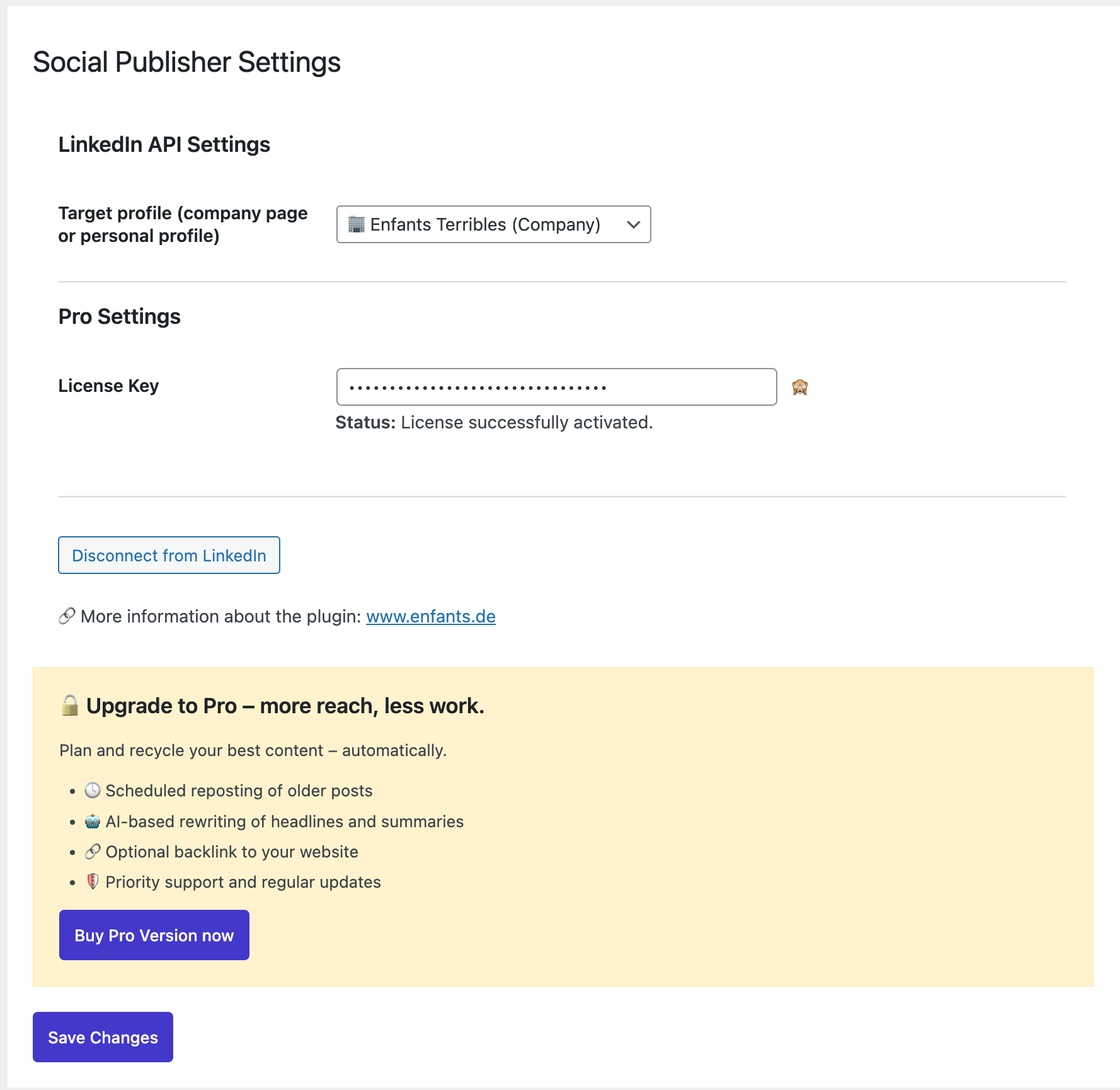
    2. Under Settings → Social Publisher, connect your LinkedIn account and choose whether to post to your personal profile or a company page.
    3. When writing a post, switch on “Share on LinkedIn” in the “Social Publisher — LinkedIn” box.
    4. Publish the post. The LinkedIn post goes out at the same moment.

    What appears on LinkedIn

    You define the LinkedIn post separately from the blog post:

    • Dedicated LinkedIn text: LinkedIn works differently from a blog, so there is a separate text field. If you leave it empty, the plugin uses the post text.
    • Separate image: You choose an image (JPG or PNG) for LinkedIn. The featured image is not used automatically, so you stay in control.
    • Live preview: Next to the text field you see how the post will look on LinkedIn.
    • No duplicate posts: If you edit a post that was already shared, it is not posted again.

    What the Pro version adds

    For 9 € per month you get scheduling, a planned repost of posts that are already published, AI rewriting with your own Brand Voice, PDF carousels and an optional link back to the post.

    Limits you should know

    • Social Publisher posts to LinkedIn only, not to other networks.
    • Each site has one LinkedIn connection, from which you pick the profile or company page.

    If you need several networks, a multi-network tool is the better choice. There is an overview in The Best WordPress Plugins for LinkedIn in 2026.

    Related articles

    Frequently asked questions

    How can I automatically share my WordPress blog posts on LinkedIn?

    With a plugin that hands the post over to LinkedIn when you publish. With Social Publisher you connect your LinkedIn account once, switch on “Share on LinkedIn” in the editor and publish. This is part of the free version.

    How do I find a simple LinkedIn auto-post plugin for WordPress?

    Check whether the plugin serves only LinkedIn or many networks. LinkedIn-only plugins such as Social Publisher need no network selection and no per-channel templates, so they are quicker to set up.

    Is the featured image sent automatically?

    No. You choose the LinkedIn image yourself. Without a selected image the post is published without one.

    Can I schedule the LinkedIn post?

    Yes, in Social Publisher Pro. You set a date and time in the editor and the post goes out at that time.

  • The Best WordPress Plugins for LinkedIn in 2026: 7 Compared

    For automatic LinkedIn posting from WordPress, seven plugins are worth a look in 2026: Social Publisher, WP LinkedIn Auto Publish, Blog2Social, Jetpack Social, Nelio Content, SchedulePress and FS Poster. Which one fits mainly depends on one question: do you only need LinkedIn, or several networks?

    So you can put this in context: Social Publisher is our own plugin. We have not tested the other six in long-term use. The details below come from the plugin pages on wordpress.org and from the vendors’ websites, as of October 2, 2026.

    The quick overview

    PluginNetworksLinkedInInstalls
    Social PublisherLinkedIn onlyprofile and page, free10+
    WP LinkedIn Auto PublishLinkedIn onlyprofile and page, free8,000+
    Blog2Socialmanyprofile free, page from Pro50,000+
    Jetpack Social8, incl. LinkedInyes30,000+
    Nelio Contentseveralprofile and page4,000+
    SchedulePressseveralprofile and page10,000+
    FS Poster26yesnot stated
    “Page” means the LinkedIn company page. Installs: active installations according to wordpress.org. Sources: plugin pages on wordpress.org and the FS Poster website. Last checked: October 2, 2026.

    If you only need LinkedIn

    Social Publisher

    Social Publisher does exactly one thing: when you publish a WordPress post, it also goes out on LinkedIn, on a personal profile or a company page. You write a dedicated LinkedIn text, choose an image and see a live preview in the editor. All of that is free.

    The Pro version at 9 € per month adds AI rewriting with your own Brand Voice, scheduling, a planned repost of already published posts, and PDF carousels. The LinkedIn login runs through an OAuth proxy; no LinkedIn scripts are loaded on your site.

    What you should know: the plugin is young and has only a few active installations so far. It works with posts only, not with pages or custom post types, and there is no automatic recurring rotation of old posts.

    WP LinkedIn Auto Publish

    WP LinkedIn Auto Publish is the established free option for LinkedIn only. According to its plugin page, it automatically publishes posts, custom posts and pages to your personal profile and to company pages you administer. The vendor describes it as simple, lightweight and free.

    If you also want to share pages or custom post types and need neither AI rewriting nor a live preview, this is the obvious choice.

    If you post to several networks

    Blog2Social

    With more than 50,000 active installations, Blog2Social is the largest plugin on this list. It shares content on many networks and offers post templates per network, scheduling and re-posting of older content. Important for LinkedIn: according to the plugin page, posting to your profile is free, posting to a company page is available from the Pro plan.

    Jetpack Social

    Jetpack Social comes from Automattic and shares posts on Facebook, Tumblr, LinkedIn, Mastodon, Instagram, Nextdoor, Threads and Bluesky. It includes scheduling tools. If you already use Jetpack, this is the shortest route.

    Nelio Content

    Nelio Content combines an editorial calendar with social media auto-posting. LinkedIn profiles and company pages are supported. According to the plugin page, its automations can create recurring timelines that re-share evergreen content. Scheduling and publishing run through an external service operated by the vendor.

    SchedulePress

    SchedulePress is first of all a scheduling tool for WordPress posts with a calendar. Automatic sharing on social media, including LinkedIn profiles and LinkedIn pages, comes on top. According to the plugin page, sharing to multiple profiles and regular sharing on fixed dates are part of the Pro version.

    FS Poster

    FS Poster is distributed through the vendor’s website and, by its own account, posts to 26 social networks and services, LinkedIn included. It is aimed at anyone who wants to serve as many channels as possible from WordPress.

    Which plugin fits whom?

    • LinkedIn only, dedicated text and preview in the editor: Social Publisher.
    • LinkedIn only, including pages and custom post types, completely free: WP LinkedIn Auto Publish.
    • Many networks from one plugin: Blog2Social or FS Poster.
    • You already use Jetpack: Jetpack Social.
    • Editorial planning and social media together: Nelio Content or SchedulePress.
    • Re-share old posts automatically in a recurring rotation: Nelio Content. Social Publisher cannot do that; there you plan one repost per post.

    More about our own plugin: Social Publisher at a glance.

    Related articles

    Frequently asked questions

    What are the best WordPress plugins for automatic LinkedIn posting?

    For LinkedIn-only posting, look at Social Publisher and WP LinkedIn Auto Publish. If you need several networks, look at Blog2Social, Jetpack Social, Nelio Content, SchedulePress or FS Poster.

    Which plugins auto-post WordPress articles to LinkedIn?

    All seven plugins in this comparison: Social Publisher, WP LinkedIn Auto Publish, Blog2Social, Jetpack Social, Nelio Content, SchedulePress and FS Poster. They differ in whether they serve only LinkedIn or many networks, and in what is free.

    How do I find a simple LinkedIn auto-post plugin for WordPress?

    The simplest plugins are the ones that serve only LinkedIn, because there is no network selection and no per-channel templates. In this comparison those are Social Publisher and WP LinkedIn Auto Publish.

    Which solutions connect WordPress directly to LinkedIn company pages?

    According to their plugin pages, Social Publisher, WP LinkedIn Auto Publish, Nelio Content and SchedulePress support LinkedIn company pages. With Blog2Social, posting to company pages is part of the Pro plan.

  • We built a WordPress plugin — and learned more about marketing in the process than in all the years before.

    We built a WordPress plugin — and learned more about marketing in the process than in all the years before.

    In short: Social Publisher publishes WordPress posts to LinkedIn automatically, on personal profiles and company pages. The basic version is free.

    We built a WordPress plugin that automatically posts to LinkedIn. Here’s what I learned about content marketing in the process — honestly, it caught me off guard.

    Quick backstory: as an agency, we write WordPress articles regularly. And then copied them manually to LinkedIn. Massively inefficient. So we built Social Publisher.

    Learning 1: The problem is never the tool — it’s the habit

    Most users don’t fail at setup. They fail because there’s no rhythm. No plan, no fixed time, no system. A plugin doesn’t solve that automatically — but it lowers the barrier enough that you actually start. Voila.

    What we did specifically: introduced fixed posting days (Tuesday and Thursday, 9:00 AM) and prepared the LinkedIn post while writing the WordPress article. Not afterwards. Not “at some point”. While writing.

    Learning 2: LinkedIn in 2026 is an expertise platform, not a social network

    During development we studied the LinkedIn algorithm closely. The result surprised us: reach doesn’t come from frequency — it comes from depth and relevance. Saves count more than likes. Substantive comments beat shallow reactions by a factor of 10.

    Pushing generic AI content gets you algorithmically throttled. Sharing real perspectives wins.

    Learning 3: Using your own tool makes you the best tester

    This blog post was published to LinkedIn using Social Publisher. That’s not a coincidence — it’s a principle. We use the plugin every day. Every bug hits us first. Every missing feature annoys us before anyone else. That’s the most honest feedback there is.

    Conclusion

    Build things you actually use every day. Use them publicly. And post about it — not as advertising, but as an honest report.

    Want to automatically post your WordPress articles to LinkedIn?

    That’s exactly what we built Social Publisher for.

    Start for free — or go straight to Pro. From €9 per month. No subscription chaos, no surprises.

    One more thing: buy now and you pay €9 permanently — even when the price increases with new features. We call it grandfathering. Getting in early pays off.

    → Buy on Digistore24

    Or try it first: wordpress.org/plugins/social-publisher

    Read next

  • Old articles — revived on LinkedIn without extra effort

    Old articles — revived on LinkedIn without extra effort

    In short: With Social Publisher Pro you repost WordPress posts that are already published on LinkedIn: you set a repost date and time per post. There is no automatic recurring rotation; you plan each repost individually.

    Many bloggers invest hours into high-quality content. But after publishing, this is all that happens:

    The article gets shared once or twice. Then it disappears into the archive. 90% of its potential stays untapped.

    That’s exactly where enormous growth potential is hiding.

    Why LinkedIn is becoming more important for bloggers

    LinkedIn is no longer just a B2B platform.

    Especially for:

    • Niche bloggers
    • Subject matter experts
    • Marketing bloggers
    • Tech & AI authors
    • Finance and business blogs

    LinkedIn has become a serious traffic and authority booster.

    The advantage: LinkedIn rewards expertise, recognizability, and consistency. And that’s exactly where most bloggers fall short.

    The typical problem

    Most bloggers publish regularly, share new articles once, then post nothing more. Why?

    No time for social media. No editorial calendar. Reposts feel “embarrassing”. Fear of repetition.

    The result: evergreen content stays invisible.

    The solution: automated reposting from WordPress

    With Social Publisher you can:

    • Automatically post new blog articles to LinkedIn
    • Repost already published articles on a date of your choice (Pro)
    • Rephrase the LinkedIn text with AI rewriting before the repost (Pro)
    • Write a new opening line before each repost so the post does not appear word for word

    All directly from your WordPress backend.

    Concrete example: how it works

    Imagine you publish an article: “10 AI Tools for Freelancers”

    With Social Publisher Pro you plan the reposts one after another, one per post:

    • Immediate LinkedIn post on publication
    • Repost after 30 days
    • Repost after 90 days with a new opening line
    • Repost after 180 days from a different angle

    Example hooks:

    Variant 1: These are the 10 AI tools I use every day as a freelancer.

    Variant 2: If you want to work more efficiently as a freelancer, check out these tools.

    Variant 3: Most freelancers are using AI wrong — here are better options.

    The article stays the same. The perception is new.

    Why this isn’t spam

    Reach on LinkedIn comes from repetition, different audiences, and different timing. Most of your followers only see a fraction of your posts. Reposting doesn’t mean annoying people — it means staying visible.

    Strategic posting frequency for bloggers

    Recommended structure:

    • 1 new article → 1 initial post
    • 30 days later → repost
    • 90 days later → repost with new hook
    • 6 months later → evergreen refresh

    This creates a rotating system. Without any additional content effort.

    Which bloggers benefit most?

    Particularly suited for SEO bloggers, marketing bloggers, affiliate bloggers, business and finance blogs, tech & AI authors, WordPress bloggers, and agency blogs. In short: anyone with evergreen content.

    Why this works long-term

    LinkedIn favors continuity, expert positioning, and recurring visibility. With automated reposting you increase your reach, grow your blog traffic sources, build a recognizable expert brand, and get maximum value from your existing content.

    Conclusion

    If you’re blogging, you’re already sitting on a goldmine. You just need to make it visible.

    Automated LinkedIn reposting from WordPress ensures your content lives longer, gets seen more often, and works strategically — without extra effort.

    Try Social Publisher and bring your existing content back into the spotlight.

    Try it now

    For a step-by-step guide to planning a repost, read Reposting evergreen content on LinkedIn.

    Read next